AI Video Upscaler
Use AI to upscale your video quality up to HD or even 2K, making every frame sharper and more detailed.
What is "Video Upscaler"?
Video Upscaler is Clipcat's AI super-resolution tool. It uses super-resolution and detail-restoration models to rebuild blurry, low-res, compression-degraded footage into sharp HD or even 2K video — filling in missing detail, suppressing noise and restoring texture, while keeping people, motion and color natural. No professional restoration software or reshoots needed: pick a video, click once, and get a publish-ready HD clip in minutes.

Upscale a video to HD in 3 steps
No restoration or color-grading skills required — pick a source, set a target, and upscale to get an HD clip.
Pick one from a project or asset
Choose from a finished project, pick a clip in your asset library, or upload a local video (MP4/MOV, ≤150MB) — the input resolution is detected automatically.
Choose an output resolution
Pick a target quality among 720p / 1080p / 2K, and the system plans the upscale ratio and detail-reconstruction strength accordingly.
Get an HD clip
Click "Upscale" and get a before/after comparison plus a downloadable HD clip in minutes, with duration and frame rate unchanged.
A closer look at Video Upscaler
From super-resolution reconstruction to detail restoration to before/after comparison — see the real quality difference in one pass.
Rebuild blurry footage into HD frames
A super-resolution model reconstructs every frame, filling in missing detail and suppressing compression noise and banding so low-res, degraded old footage looks fresh again — up to 2K, with an instant jump in visual quality.
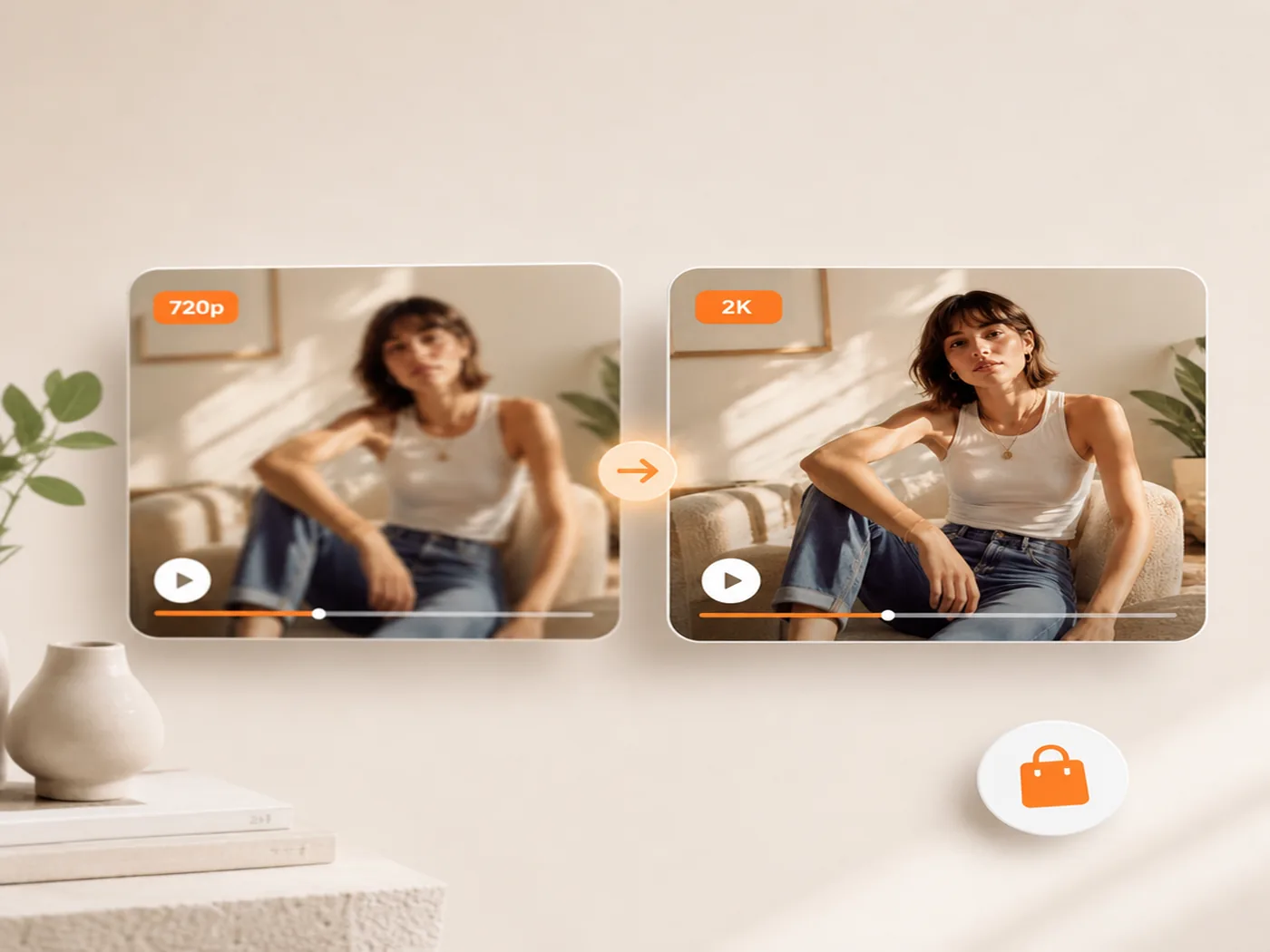
See the real difference side by side
The right panel shows a "before / after" dual view — inspect each frame on its own, with resolution, duration and frame rate all visible at a glance, so you can confirm the real improvement before publishing.
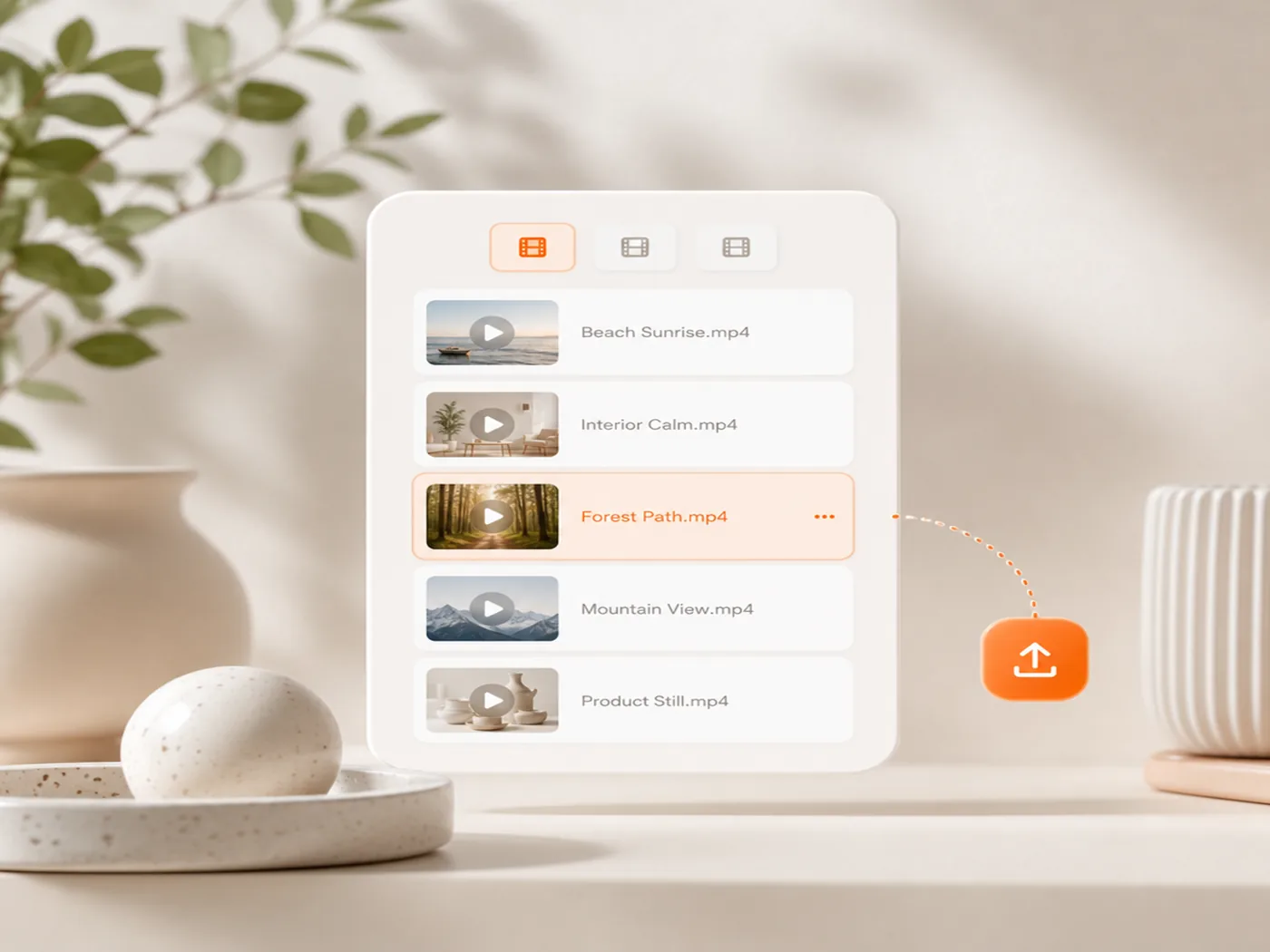
Upscale finished clips and raw footage alike
Upscale a finished video generated in a project, pick a clip from your asset library, or upload a local file — all in one flow. Input resolution is auto-detected; you just choose the target quality, and creation flows straight into publishing.
Why use it to upscale video quality
What used to require professional software or a reshoot to fix blurriness now takes one upscale, in minutes.
Zero learning curve, minutes to result
No restoration or color-grading software needed — pick a source, set a target, click once, and get a publish-ready HD clip in minutes.
Natural detail, no distortion
Reconstruction keeps people, motion and color natural, avoiding over-sharpening and a plastic look — clear and real at the same time.
Connected to your creation flow
Finished project videos, asset-library clips and local uploads can all be upscaled directly — download the result or keep using it in further edits.
Who should use "Video Upscaler"?
From individual sellers to brand teams — if you have blurry, low-res footage that needs to look sharp, this gets it done in one click.
Cross-border sellers / operators
Upscale low-res product videos and old footage supplied by merchants into HD and use them for TikTok ads directly — no reshoot or rework needed for clarity.
Short-video creators
Rescue videos that turned blurry after repeated phone compression and re-saving, bringing them back to HD so your content stands out more in the feed.
Marketing / content teams
Bring footage from different sources up to a consistent clarity level, so ads and content look equally polished across every channel.
Brands / merchant teams
Batch-refresh a library of old low-res footage into reusable HD assets, without reshooting for every new launch.
MCNs / agency operators
Process footage of mixed origin and clarity across multiple accounts in bulk, unifying it to HD in minutes for a more professional delivery.
Video editors / post-production
Fix quality gaps before final delivery in one click, bringing low-res segments up to HD standard and saving hours of manual restoration and denoising.
Why they can't do without it: real results from real users
Hear from sellers, creators and teams who used it to turn blurry footage into HD and save hours of restoration work.

"The footage merchants send me is often blurry and over-compressed — I used to just settle for it or reshoot. Now I pick a clip, click once, and it's HD, straight into my ads. Clarity went up and so did conversion."

"It rescues videos that turned blurry after a few rounds of saving on my phone. The detail it fills in looks natural, without that over-sharpened plastic look, and my posts clearly stand out more in the feed."

"The before/after comparison is genuinely useful — you can see exactly how much the quality improved at a glance, which makes client deliveries more convincing, and it's ready to download right away."

"Our footage comes from all kinds of sources with wildly inconsistent clarity. Now we run a batch pass and everything's unified to HD — both delivery quality and efficiency went up a level."

"A lot of our historical footage is low-res, and reshooting is expensive. This lets us refresh those old clips into reusable HD assets, saving a large chunk of our shooting budget."

"There's always a low-res clip or two dragging down a delivery, and fixing it used to mean going frame by frame. Now one click brings it up to HD without distortion, saving enough time to cut a few more edits."
About Video Upscaler
You can pick from finished project videos, your asset library, or upload a local video. Local uploads support MP4/MOV up to 150MB per file, and uploaded videos are saved to "My Assets".
Output resolution offers three tiers — 720p, 1080p and 2K. The system auto-detects the input resolution and plans the upscale ratio, up to 2K.
Not at all. Just pick a video source, set a target resolution and click "Upscale" — the whole process is handled automatically by AI.
No. Upscaling only rebuilds visual clarity — duration and frame rate stay unchanged, and you can verify both in the comparison panel on the right.
Each upscale costs 10 credits and returns a before/after comparison plus a downloadable HD clip.
Upscale your next video to HD
Pick a video and get blurry footage looking sharp in minutes — download a publish-ready HD clip right away.