The most common problem with AI-generated shopping videos is character consistency: every generation shows a different face. For anyone building an account, that's fatal — viewers can't remember you, and the account never builds trust. The way to actually build an IP is to fix a digital avatar first and have it appear across all your videos as the same person. This guide shows you how to create a character with Clipcat AI Avatar and keep it on screen in every TikTok video.
Quick answer
Open My Characters → click New Character → create one using either upload a real photo or AI generation → go back to the video generator and select that character under Role → generate. From then on, picking the same character means the same person is on screen every time — no face-swapping, one consistent look.
Why a consistent character matters
Trust on short-video accounts is built through a familiar face. Only when viewers see the same person again and again do they remember you — and then your product. Swap the face every video and you're rebuilding recognition from zero each time; the account never compounds. A fixed avatar solves exactly this. Here's the direct comparison between a random face and a fixed character:
| Dimension | Random person each generation | Clipcat fixed AI avatar |
|---|---|---|
| Character consistency | A new face in every video | Always the same person |
| Account recognition | Unmemorable, no trust | Familiar face, builds IP |
| Series content | Scattered look, no continuity | Coherent series, one look |
| Setup method | Can't fix a look | Upload a photo or AI-generate |
| Reuse | None | Create once, use everywhere |
Once your character is set, pair it with the TikTok shopping video generator to batch-produce series content with the same person on screen. Want more viral potential? Find your direction first with Collect Viral Videos.
3 steps to your avatar video
Create the character, then select it when generating — that's it.
1Create a new avatar character
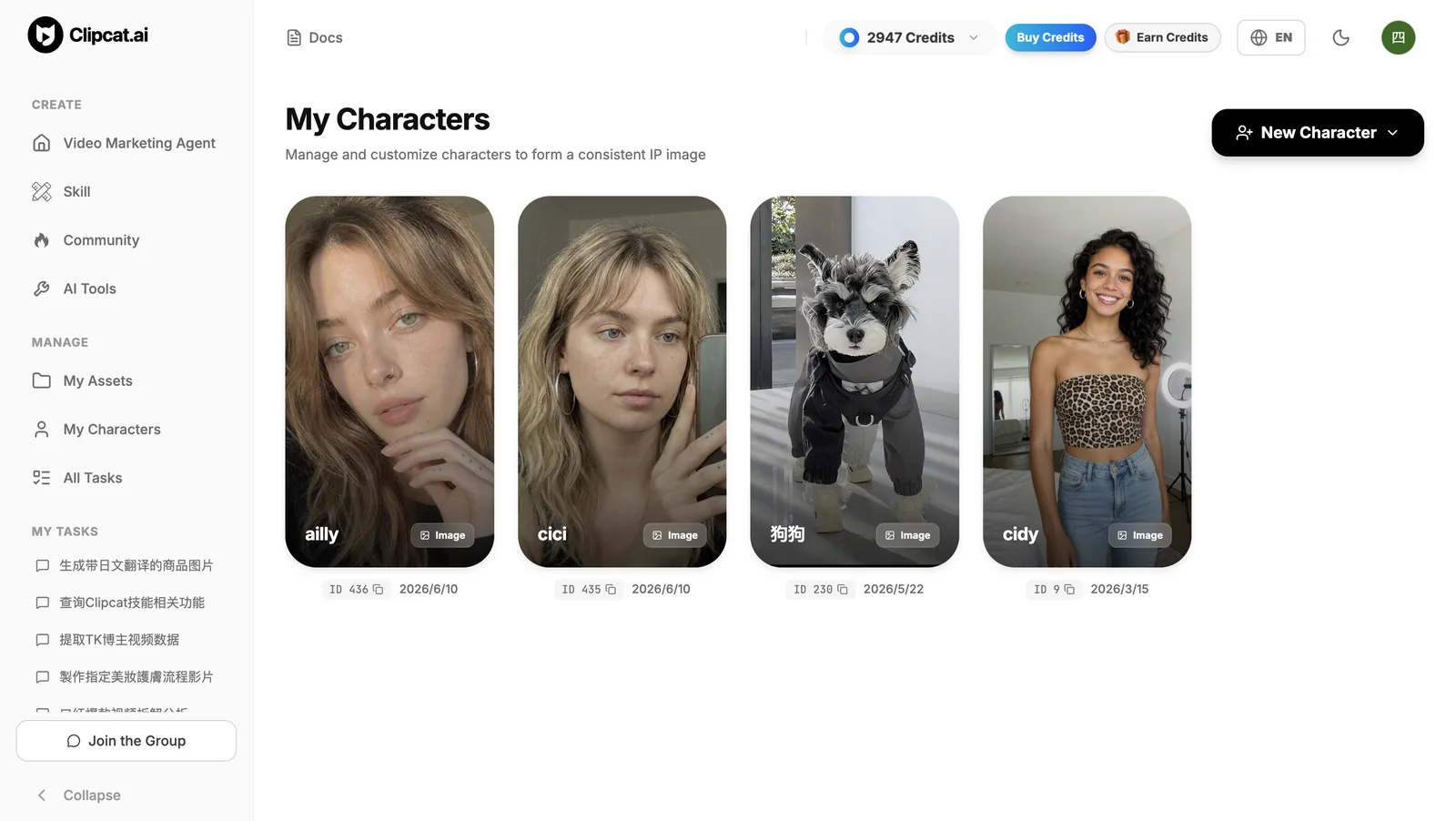
Open My Characters in the sidebar and click New Character in the top right. This is where you manage and customize all your characters to form a consistent IP image. Existing characters are listed as cards, ready to reuse anytime.
2Build the look via real photo or AI generation
Creating a character supports two methods: upload a real photo — turn yourself or an existing look into a character; or AI generation — spin up a brand-new virtual avatar. Once created either way, the character is saved to My Characters.
3Select your character in the video input box and generate
Back in the video generator, select the character you just created under Role, then upload your product photo, describe the selling point and generate as usual. The person on screen is that fixed character. Pick the same character in every video to keep the look consistent.
5 keys to a more stable, faithful avatar
To keep a fixed character reproducing reliably across videos, follow these:
- Use a clear base photo: when creating from a real person, pick a clear, front-facing, evenly-lit photo with distinct features and no heavy occlusion — consistency will be much better.
- One account, one character: don't switch characters often. Letting viewers see the same face repeatedly is what actually establishes the IP.
- Provide full product photos too: alongside a fixed character, give a full photo plus multiple angles so both the person and the product stay accurate.
- Keep a consistent style across a series: with the same character, keep scenes, tone and pacing similar so the memory hook is stronger.
- Add specific requirements in the prompt: if you have expectations for expression, motion or delivery style, spell them out in the description so the character matches your account's tone.
With character and product locked in, batch-generate at low resolution to test creatives, then run the winner through Video Upscale to 1080p before posting.
FAQ
How does an AI avatar keep the same person on screen?
You create a character once in My Characters, then set it as the Role when generating a video. The system uses that fixed character, so the same person appears across all your videos with no face-swapping — building one consistent account identity.
How can I create an AI avatar character?
Two ways: upload a real photo to turn yourself or an existing look into a character, or generate a brand-new virtual avatar with AI. Either way the character is saved to My Characters and can be selected as the Role in the video input box.
Can I reuse an avatar across many videos?
Yes. Once created, a character is saved persistently. Every time you make a new video you can pick the same person again, producing series content with a consistent on-screen identity.
What kind of photo works best when creating a character from a real person?
Use a clear, front-facing, evenly-lit photo with distinct features and no heavy occlusion for the best consistency. Blurry or extreme side-profile shots reduce how faithfully the look is reproduced.
Can avatar videos be posted directly to TikTok?
Yes. Avatar videos output as 9:16 vertical by default; download the MP4 and post it straight to TikTok, Instagram Reels or YouTube Shorts.